
How to Convert Decimal Hours to Time in Excel
2010-10-07
Introduction
In the versatile world of Excel, converting a decimal time value into minutes and hours is a straightforward process, especially when dealing with time values that are less than 24 hours. Whether you're tracking work hours, scheduling events, or analyzing time-based data, efficiently converting and understanding these time values is crucial.
This guide is designed to help you master the art of converting decimal hours into a more understandable hours and minutes format in Excel, a skill that is particularly useful in various real-life applications. By exploring the nuances of this conversion process, you'll be equipped to handle time-related data more effectively, enhancing both productivity and accuracy in your work.
Understanding Time Representation in Excel
In Excel, time is represented uniquely, a concept crucial to understanding for effective data management. Excel treats time as a fraction of a day. In this system, one day is equivalent to the number 1. Therefore, an hour, being 1/24th of a day, is represented as approximately 0.04167 (1/24).
This decimal representation extends to minutes and seconds, where each minute is 1/1440 (since there are 1440 minutes in a day) and each second is 1/86400 (as there are 86400 seconds in a day). Understanding this fundamental principle is key to accurately converting, calculating, and manipulating time values in Excel.
Step-by-Step Decimal to Time Conversion
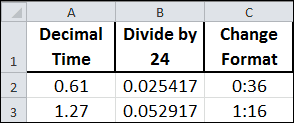
Here are three simple steps to convert decimal to time.
-
Enter the Decimal Time: Begin by entering the decimal time value into a cell. For example, 5.75 hours, which represents 5 hours and 45 minutes.
-
Divide by 24 to Convert to Excel Time Format: To convert this decimal hour into Excel’s time format, divide the decimal time by 24 (since one day equals 24 hours in Excel). Use the formula
=A1/24if your decimal time is in cell A1. -
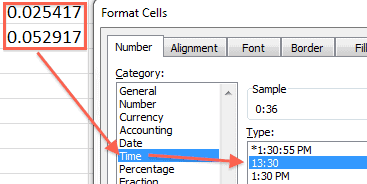
Change cell formatting to Time (h:mm): After applying the formula, the cell might display a decimal. To see this as a time, format the cell: right-click the cell, choose 'Format Cells', select 'Time', and choose your preferred time format.
To change the cell format use the keyboard shortcut ctrl+1 to bring up the Format Cells dialog box, select the Number tab, click Time, and then select the h:ss format as shown below.
If you have a lot of conversions then one column for the decimal values and another column for a formula dividing by 24 will suffice. Just change the formatting for the second column. The example above shows three columns for illustrative purposes and is not very practical.
Obviously, a conversion can be done in one cell if you:
-
Enter a formula into a cell with a decimal value divided by 24 (=0.61/24)
-
Format that cell to h:mm
If needed, you can also extract hours and minutes separately. For hours, use =INT(A1) and for minutes, =(A1-INT(A1))*60.
Convert Decimal Hours to Time in Real-Life Examples
-
Tracking Work Hours and Calculating Payroll:
-
Formula:
=A1/24(convert decimal hours in A1 to time) -
Example: An employee works 8.5 hours. Enter
=8.5/24, format the cell as time, and it shows 8:30 hours.
-
-
Project Management and Time Allocation:
-
Formula:
=(A1-INT(A1))*60(converts decimal hours in A1 to minutes) -
Example: A task takes 1.75 hours. Use
=(1.75-INT(1.75))*60to find it takes 45 minutes.
-
-
Analyzing Time-Based Data in Research or Studies:
-
Formula:
=INT(A1)(extracts hours from decimal time) -
Example: Research activity logged for 2.25 hours. Use
=INT(2.25)to identify it lasted 2 hours.
-
-
Pilot Logbook Time Conversion:
-
Pilots often log flight hours in decimal but need them in hours and minutes.
-
Formula:
=A1/24, and=(A1-INT(A1))*60 -
Example: A flight logged as 3.5 hours. Enter
=3.5/24for the total time and=(3.5-INT(3.5))*60for the minutes portion, showing 3 hours and 30 minutes.
-
Conclusion
Mastering the conversion of decimal hours to time values in Excel is not just about handling numbers – it's about making sense of time data in a practical, efficient manner. Whether for personal time tracking, professional project management, or detailed data analysis, this skill is invaluable. By following the steps outlined in this guide, you can transform raw decimal time data into a more accessible and understandable format. This capability will not only enhance your proficiency with Excel but also provide you with a more intuitive understanding of time-related data, ultimately leading to more informed decisions and effective time management.
And remember, this only works properly for decimal values less than 24 hours.