Comments migrated from the previous version of the site. Adding new comments is disabled.
Rajan26 listopada 2011 16:26
Thanks it is helpfull
jokula11 stycznia 2012 09:37
hi gregory..i was trying this excercise out and am getting an error message when i put in this Table1[#Headers] . I tried googling but cant figure out any '#' tag functions.
Am lost?
Gregoryexcelsemipro.com12 stycznia 2012 03:14 Make sure you have
inserted a table into your Excel spreadsheet. Then make sure your table has the name Table1. (You can do this by going to an empty cell and hitting the equals key (=), then selecting the table header.
The resulting formula should be
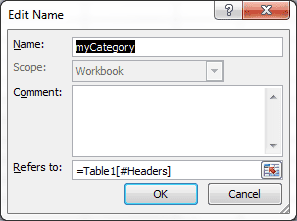
=Table1[#Headers] which you can see in the formula bar. (If you've added more than one table, your table might be named Table2). The cell will show #VALUE! because this is and array formula that returns more than one value.
And don't forget to enter the equals sign when you enter this formula as a defined name (in the Edit Name dialog box).
jokula12 stycznia 2012 05:19
Thanks greogry!!..it worked.
I had just named it as Table1 and not 'inserted' a table as u mentioned.
Very informative, Thanks again!
Loretta16 stycznia 2012 16:11
How can I do this with a shared files? Excel Tables are not supported in a Shared Excel File.
Gregoryexcelsemipro.com17 stycznia 2012 01:30 @Loretta, you have to replace references to the Table with a range reference. For instance, the top row of the Table, the Header row, can be named myCategory, if defined names are allowed in shared files. Otherwise you can use the range reference D1:F1 where you see myCategory.
Any references to Table1 can be replaced by its range reference, which is D2:F( in this blog article example. The defined name for myItemList would become =INDEX($D$9:$F$9,0,MATCH(Sheet1!A2,$D$1:$F$1,0)) but the problem with this is that the table is not dynamic. If you add data to the table (that's not a table) you have to change the range reference.
The alternative is to add defined names for the table, in other words create a defined name, like myTable, and give it the range reference of your table range, minus the header. If you want to add data to the table, insert a row between one of existing rows of the table, not at the end, and the table range will automatically resize.
Lalit bhatia19 stycznia 2012 22:18
Hi Gregory,
this is an amazing tutorial. Very helpful indeed. I have one question.
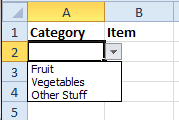
In the first dropdown if I change the value, how do i clear out the dependent column - So if I update A2, i want B2 selection to be cleared
thanks
Lalit
Gregoryexcelsemipro.com20 stycznia 2012 06:00 @Lalit you can do this with some VBA code in the worksheet. Use the keyboard shortcut ALT+F11 to bring up the VBA Editor. Make sure the Project Explorer is showing (select View > Project Explorer if not showing). Then double-click the sheet with the drop-down list, like Sheet 1. Then at the top left box where is says (General) select the drop-down handle and select Worksheet. Then select the drop-down handle for the top-right box and select Change. Then type in the following code (starting with If Target):
Private Sub Worksheet_Change(ByVal Target As Range)
    If Target.Address = Range("A2").Address Then
        Range("B2").ClearContents
    End If
End Sub
Now every time the contents of cell A2 changes, cell B2 will have its contents cleared.
Lalit bhatia20 stycznia 2012 15:17
thanks Gregory,
Appreciate your quick response. This kinda works. Only issue is that B2 gets cleared on select rather than on change. so if i go back to A2, B2 clears even if i haven't changed the value
Gregoryexcelsemipro.com20 stycznia 2012 15:26 You picked Selection_Change instead of Change. I did the same thing at first. Just go to the top right drop-down box and make sure you pick Change, then move the code and delete Selection_Change.
Lalit bhatia20 stycznia 2012 16:25
thanks.that worked. Just fyi, to apply this for an entire column, (i.e if i change any item in column B, the corresponding value in C clears), the code looks like
If Target.Column = 2 Then
Target.Offset(0, 1).ClearContents
End If
thanks again
Hector6 lutego 2012 23:33
You are a genius. This is the best system for dependent validation lists I have found after countless hours of search.
Wish you a lot of success.
Hector6 lutego 2012 23:46
Hello,
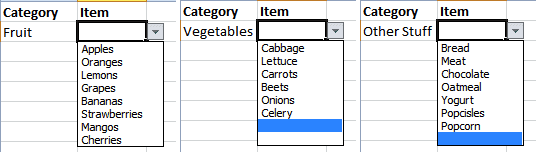
I have following question. Lets say you selected a value in column A, as Fruit, and then in column B you select Banana. Now if you go back to the same row, and you change the selection in column A to Vegetable, in column B you still have Banana. Is there a way around to block the list in column A when there is a value in Column B?
Best regards and thank you for your great solutions!
Gregoryexcelsemipro.com11 lutego 2012 20:51 Yes, but it requires some VBA code. @Lalit had the same question, which I answered and you should be able to review my answer and her response in the comments above.
Hector17 lutego 2012 11:11
Dear Gregory,
thank you very much for you help!
Lisa22 lutego 2012 02:55
Dear Gregory: I have followed the instructions several times but encounter an error when I attempt to set the data validation for the Item B2 cell, I receive the following, "The Source currently evaluates to an error. Do you want to continue?\" Any ideas as to what I am doing incorrectly?
Gregoryexcelsemipro.com22 lutego 2012 06:22 I haven't seen that error.
Let me find the file I used in the blog post and set it up to be downloaded. This will give you a live example that you can use to compare it to your file. (It might take me a day or so to get this done)
If that doesn't work you may send me your file so I could take a look and see where the problem resides.
Gregoryexcelsemipro.com23 lutego 2012 04:18 I posted a link to the file, but here's
another link just for you. Let me know if you are not able to fix the "error" you are getting and we'll figure out what's wrong.
Lisa24 lutego 2012 04:03
Hi Gregory:
Thanks again for the quick reply. I still cannot get this to work correctly. Still getting the same message. I am sure my mistake should be obvious but I cannot see it. If I try and insert data valadation in cell B2, I get the same error message - “The Source currently evaluates to an error. Do you want to continue?” However, it worked when I tried it in cell B1, which contains the Header label "Item." Any ideas?
Geezer28 lutego 2012 21:41
Same for me. I have tried this numerous times and it looks a great idea but I always get stuck with this same issue and error message - it met be something simple… but inscrutable
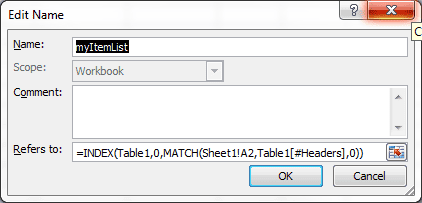
Gregoryexcelsemipro.com29 lutego 2012 02:18 The problem that @lisa had was indeed simple. The myItemList formula =INDEX(Table1,0,MATCH(Sheet1!A2,Table1[#Headers],0)) was slightly off. She had typed D2 instead of A2 for the cell reference and that evaluated to an error.
Laila9 marca 2012 22:21
Geezer, were you able to find a solution. I'm getting the same error and can't find my mistake.
Tx,
Dave1 sierpnia 2012 03:38
If you don't have anything in the first column selected, your second list won't work and will get that error - just select some fruit or something in A2 before you go ahead and set up the data validation in B2.
Gregoryexcelsemipro.com3 sierpnia 2012 00:57 Yes, when there is no selection in the first column, the second column drop-down does not have a reference for the formula. That's how it's designed. There are ways around this by writing an IF/THEN statement, which directs the Data Validation to do one thing with a blank cell and another if not.
Mark22 lutego 2012 14:05
Great walkthrough - I have one question - Is there any way to create a third tier?
For example - Category Item Make
Fruit Carrotts Asda Carrotts
Sainsburys Carrotts
etc etc
Gregoryexcelsemipro.com23 lutego 2012 04:08 A third tier may be possible, but it makes my head hurt to even think about it. Using the second level column data as the third level column header may be a starting point, but if you have multiple columns on the second level this would mean several third level tables, which means that a single lookup might be difficult, or unworkable unless you use a consolidated range. Now I'm headed for the Tylenol.
Steph P.18 czerwca 2012 21:05
Wonderful article! I just applied your process to a third tier. My columns are "Category", "Type", and "Subtype". Table1 has Category for headers and Type for values, and an additional Table2 has Type for headers and Subtype for values. I found I could skip the step of naming the Table2 headers (it's not needed for data validation of the 2nd tier: that is done with the first table and your original steps.) I repeated the steps to Create a First Defined Name (this time for "mySubtypeList") and Create a Second Defined Name (this time for "mySubtype"). That final name was used for data validation of the third tier.
Gregoryexcelsemipro.com20 czerwca 2012 04:15 That sounds totally awesome! Now if I could just figure it out just exactly what you mean ...
Renata11 lipca 2012 14:29
I'm trying to follow this, but can't make it work... it gives me the usual error “The Source currently evaluates to an error. Do you want to continue?\” when doing Data Validation. I tried with all the cells to refer to I can think of bu no change... Anyone can help?
Gregoryexcelsemipro.com12 lipca 2012 02:25 @Renata, go the the bottom of the article where you'll see a link to "download this file." Click the link, download the file and see if you can follow what I did. Maybe you can see where your error is located.
Renata12 lipca 2012 06:11
@Gregory, thanks. But actually I managed to create the system (and working perfectly) for a second tier, now I need the 3rd thier, like it was explained by the other guy (Steph P). This is the bit that I cannot make it work :( And I need to deliver the file in few hours, argh, "grattacapo" as we would say in italian.
Thanks anyway, and great job, great system, really very useful, thanks Gregory!!
Sarah23 lutego 2012 17:17
Hi Gregory. Thanks for the great tutorial! I have a question-- how would I set up a dynamic dependent drop-down list if I wanted a user to be able to enter any date in the second field column. So, First column has a drop-down menu created from a defined name, and then, based on what value in the defined name is chosen, an answer or a blank cell will appear which can be modified with any date. I get the theory, but not how to put it into practice.
Gregoryexcelsemipro.com24 lutego 2012 01:02 You can't have it both ways. If you choose a List in the Data Validation dialog box you can get anything from that list, but only that list. If you pick Any Value, then you can enter anything, even a date, but you don't get anything from a list.
Dan16 marca 2012 07:54
Hello Gregory, thank you for the tutorial.
I think I followed closely the instructions but I get the following behaviour:
regardless of the category I choose, the list in the items drobdown is the firs column of the Table1 (including the header of column 1). I cannot find the mistake.
Thank you
Dan16 marca 2012 08:08
got it - I was mixing some names and, consequently the referenced cells.
Alvaro20 marca 2012 00:06
Hello;
I notice that when adding a new row to the table you crated, you are still allowed to select the category but not the item, the list for the item is no longer there.
I'm having the same proble with my file, can you help!
Thanks
Gregoryexcelsemipro.com20 marca 2012 03:01 I've had a few people tell me they've had some trouble getting all the steps right, so I added an [UPDATE] section to the bottom of the post with a link to the file I used. Please download the file and you can follow what I did, and perhaps see where your work differs.
If you still have issues, please use the Contact page and send me an email. We can figure it out together.
Alvaro20 marca 2012 17:13
Hello Gregory@
Tried again with the updated link, and recreated my excel file, i'm still getting the same problem...
Please help!
Trish22 marca 2012 18:35
I'm glad I found this. I have been using the dependent drop down validation list, but putting the OFFSET formula into the data validation field, rather than using the table mehtod described above. I was going to convert what I had done using the instructions above. Does it matter if I have created the tables already?
My table is"Equipment". The column that defines the dependency in Equipment is "Category" and the dependant column is "Model_Name". Here is what I currently have in the data validation field:
=IF(E2="",Category_List,INDEX(Category_Column,MATCH(E2,Equipment_Column,0)))
I am defining the "Category_List" as a named range using the offset commands:
=OFFSET(Variables!$A$2,0,0,COUNTA(Variables!$A:$A)-1,1)
I am defining the "Category_Column" as a named range using the offset commands:
='Equipment Models'!$A:$A
I am defining the "Equipment_Column" as a named range using the offset command:
='Equipment Models'!$I:$I
Would like to simplify this if at all possible and use the power of the table functionality. Suggestions?
Gregoryexcelsemipro.com24 marca 2012 19:33 @Trish, based on what you said and what I understand: Your first data validation list would be the defined name myCategory and the formula is =INDEX(Equipment[#Headers]). The second data validation list will be another defined name myItemList and the formula is =INDEX(Equipment,0,MATCH(E2,myCategory,0)). Notice that in this last defined name formulas that I used your reference to E2, and I'm not sure which sheet it's on. The second thing is that I used myCategory for the MATCH reference, instead of retyping INDEX(Equipment[#Headers]).
Gregory,
I am trying to use the formula....=INDEX(Table1,0,MATCH(Sheet1!A2,Table1[#Headers],0))....in a spreadsheet where I want each row to return a selection made from my table. I have created the table in a seperate sheet and when I use the formula I only get the selection I made in the first row.
My formula is.for a defect type with the name Defect_2 in the name manager..=INDEX(Closed_Lists!$G$2:$L$9,0,MATCH(Tracker_List!$J$11,Closed_Lists!$G$1:$L$1,0))..
The idea being that I select a defect from the table in cell J11 and cell K11 gives me a second list of defect types from the table to choose from. I copy down the formula through the spreadsheet, but can only get the subsequant rows to return based on what is in row 11.
Any help please?
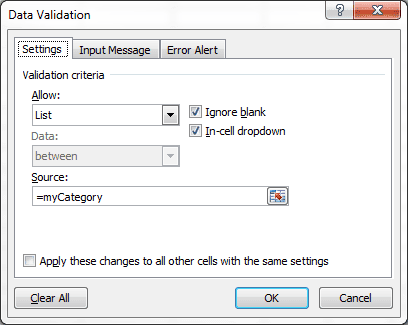
Gregoryexcelsemipro.com29 marca 2012 02:57 Your formula should work, but it's an array formula and hence you only see the first cell. Put your formula in a Defined Name, and call it something like myList. Then create a Data Validation list in a cell, and the list is =myList. Then you'll see the full list from the table.
Gregory,
Does the data validation have to be in every cell in a particular column or just the first one?
I'm not all that good at excel and didn't fully understand how to do as you suggested.
Could you provide a little more guidance please?
Gregoryexcelsemipro.com31 marca 2012 00:48 I'm using Data Validation in this example to simply show a list of value in one cell. I wrote an article on Data Validation you can read by clicking this
link.
Daniel6 kwietnia 2012 14:03
Gregory,
Great tutorial, very helpful. Is there a way though to build the same dynamic dependent lists if the table headers were actually rows and not columns? For example, if the table was set up like this:
category values
----------------------------------
fruit Grapes
fruit Apples
vegetables Celery
other stuff Bread
other stuff Yogurt
I would still like to have a category drop down, and then based on the category chosen, the values dropdown would only show those associated to the specified category.
Gregoryexcelsemipro.com8 kwietnia 2012 01:12 Yes, but your table needs to look something like this:
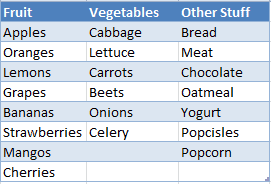
Fruit Grapes Apples
Vegetables Celery Beans
Other Stuff Bread Yogurt
Name the first column myCategoryH in a named range, then define another range name for the rest of the table and call it myTableH.
Next create a defined name myItemListH and the formula will be =INDEX(myTableH,MATCH(Sheet1!D1,myCategoryH,0),0)
The second argument of the INDEX function will get the row match, and putting a zero in the last argument will return the entire row.
In cell A2 set the data validation for a list =myCategoryH, and in cell B2 set the data validation to a list =myItemListH.
Now you have a horizontal lookup.
monica Hagan16 maja 2012 17:04
Gregory,
I really appreciate you sharing the configurations for the dynamic depend list. I have a question I hope you can help me.
I am trying to create a very simple database using the form function from excel. Actually I downloaded the J-walk addin so I can use depended lists for several of the entries. My problems is that when I try to use the dynamic entries for the selection in the form, the list does not come up. But when I try to select the entries on spreadsheet it works fine.
Let me know if you can help me?
Thanks
Monica
Gregoryexcelsemipro.com19 maja 2012 17:28 I would need to see the spreadsheet and the form to answer your question. I haven't tried to do any dependent drop-down lists inside a form so I'm not sure how that would work.
Monica Hagan8 czerwca 2012 11:14
Greg,
I created a VBA code using combo boxes to accomplish what I was doing before with the form function in excel. I am able to assign named formulas to the combo boxes, but when I tried to assigned the depend box it does not seem to work.. Have you done dependent drop down list using combo lists in VBA?
Thanks,
Moniac
Gregoryexcelsemipro.com10 czerwca 2012 19:41 I have not tried to do this with VBA, but given the amount of interest in this particular topic I might have to do something that will automatically update with VBA. Sorry I'm no help. If you feel comfortable sending my your file, contact me and I'll take a look.
Monica Hagan20 czerwca 2012 07:20
Gregory,
Thanks. How do I send you a copy of my excell file? I love ot have some help..
Thanks,
Vernon18 maja 2012 00:29
Hi Greg,
I have a question. I am trying to create a drop down list where the options in the list show detail but when you select it, the display cell has a concise version of the selection. Is there a way to do this?
Gregoryexcelsemipro.com19 maja 2012 17:36 I'm not entirely sure I understand the question. What do you mean by "the display cell has a concise version of the selection?"
Vernon20 maja 2012 00:10
Hi Greg,
Here is an example of what I mean. In the cell where the drop down list exists. I want the drop down list to have a detailed explanation: eg 'orange: a citrus fruit' however once I select that option I want the cell to only show 'orange'
Thanks again.
Gregoryexcelsemipro.com20 maja 2012 16:40 I don't know how to do that in the same cell. Debra Dalgleish has something about doing this very thing on her
site, but VBA is involved. I don't think it's complicated.
Larry23 maja 2012 21:09
Hi Greg,
I would like to build a spreadsheet that contains a department field. Then Based off of the department field a chart of accounts list will be filtred to the correct accounts for that department and allow multiple entries.
Can you help me with this?
Policy
Etcc...
Gregoryexcelsemipro.com27 maja 2012 05:20 You could use this article and pretend that Category was the Department, and Accounts was the Item. Multiple entries would have to be in different rows. So instead of Fruit, Vegetables, etc. you would have Dept 1, Dept 2, etc. and then under Dept 1 you would list it's chart of accounts.
If you're not sure about this send me an email on the contact page.
Kamala25 maja 2012 08:47
I tried creating a data table ,cross checked it points to correct name as Table2.
Also created user defined name in similar to mycategory as DynT2 .
Post this , in another sheet where i want to get this dynamic data tables value , i tried to include this DynT2 into the data validation of the cell .Post this Iam getting only the header values of T2 and nothing more .
I don't understand why at all we had to create ItemList & Items User defined names and how it is linked to the cells..
I also tried this similar procedure in the same sheet still getting same issue.
can you throw some more light onto this..
Gregoryexcelsemipro.com27 maja 2012 05:28 If you follow the article exactly it will work. Common problems are missing something simple that you don't see when you go back and look over what's been done. That happens to me more times than I like to admit. Try downloading the example file from the article. That will give you a working spreadsheet that you can tinker with and modify.
Sue25 maja 2012 10:43
Hi Greg,
I'm trying to create a conditional drop-down list that contains repetative information. I have 3 columns, one is Office (select the State the office is located), next column is Department (eg Banking, Property) and the third is a list of staff members within that particular office working in the selected department. The departments are repeated for each State an office is located. I've been able to set up the first two columns correctly but because the departments are repeated for each State I'm not sure how to populate the appropriate staff members in a drop-down list. If I select the department as "Banking" in one row then the next time I select "Banking" I get the same staff members listed even though the offices are in different States. Just wondering if you can help me this?
Any help would be greatly appreciated.
Gregoryexcelsemipro.com27 maja 2012 05:25 It sounds like you have to concatenate the State and Department so that you have a unique list for staff members. AK-Banking, CO-Banking, HI-Property, MN-Property, etc.
Raymond Tsan31 maja 2012 18:13
Hey Gregory,
I know your defintely getting a lot of praise for your brilliance and you deserve it. It took me a while to read through all the interesting comments but I didn't see my question be asked so here it goes:
Is it possible to choose from the drop down list and instead of filtering the results, display all the results. Here is an example.
If you choose January, on A2, then
...
January 25, 2012
January 26, 2012
January 27, 2012
January 28, 2012
January 29, 2012
January 30, 2012
January 31, 2012 pops up. If we chose February,
February 23, 2012
February 24, 2012
February 25, 2012
February 26, 2012
February 27, 2012
February 28, 2012
February 29, 2012
shows in the same cells as January if I chose that prior.
I didn't think it was going to be this hard to figure out! Is this even possible on Excel?
Thanks a lot,
Ray
Gregoryexcelsemipro.com4 czerwca 2012 00:04 I don't know how to show the days of the month in the same cell that you choose the month, i.e., cell A2. You can have the days show up as a list in cell B2, but I'm sure you've figured that out. Sorry I couldn't be of more help.
Susie28 czerwca 2012 14:22
I was able to follow your directions above and successfully create one dropdown based on another on a sample file with Sheet1 as sheet name and using Colunmns A2 and B2 in that sheet but when I tried to adjust so I could use on my Working file and Sheet called external 'IHD Hiring Sheet' and Columns F and G, I cant get the second drop down, in column G (based on data in Column F) to work. I am sure I am missing something simply, I hope you can help.
Gregoryexcelsemipro.com29 czerwca 2012 00:54 It's not clear to me what you did to "adjust" the sample file to the working file. It might be best to remove what you have, and start over in your working file. Or you could use the Contact page on this blog and email me a better description of how you made the adjustment, from sample file to working file.
If the working file is something you could share, then we can work out how to get me the file to take a quick look. It's probably something simple like a range address that is slightly off.
Scott Whitney28 lipca 2012 17:37
This is a wonderful resource. I'm using it to evaluate my student's sign language performance. Instead of having to retype the same comments again and again, I put the comments in a drop down. I also put the vocabulary they need in the story in a dropdown, then created columns of error1, error2, etc. with the same vocabulary list copied using a formula. With the vocabulary in a table, I can automatically update it adding new vocabulary.
I just modified it a little to get the student's names in the first evaluation column, then added the errors in the subsequent columns. It's set for pivot tables now too.
Thanks a ton!
Karthiga Balakrishnan30 lipca 2012 11:33
Hi Greg,
I was looking for a way to provide dropdown values based on a value chosen by the user, and your post has helped me with just what I needed. Thank you for this post, it has been very helpful.
I've tried to implement this solution in one of the situations where there are too many categories and few items under each category! So maintaining these categories in a conventional table means several columns with few values under each column. It would be nice if I were to maintain the categories in a single column and list the values for each category in the same row against each of them -- simply put, I want to transpose the table values for easy maintenance and still need this solution to work somehow [am I expecting a magic to happen here :|] appreciate any help or assistance you can provide.
Thank you.
Gregoryexcelsemipro.com8 sierpnia 2012 01:41 Sorry for the delay in responding. I wrote a post on this topic:
A Dynamic Dependent Drop Down List with a Horizontal Table Reference. Essentially you can transpose your table values and the category headings will now be row headings in the first column. This means you can't use an Excel Table because, by default, the headings are in the top row. You can use a named range for the data table and then alter the formulas as I did in the aforementioned post.
Updating the table is a little tricky as you have to be careful to make sure the defined name references the entire table. It won't automatically update. You have to add data to the table, then update the defined table name so the formulas will work. This can be done with a little VBA, but is probably outside the scope of your original question.
Lauren31 lipca 2012 15:29
Hi Gregory! Really helpful tutorial
I just have one question, when you are creating the Defined Names for ITEMS are you selecting the whole table when defining the name or just the items without the headers?
Thanks!
Lauren31 lipca 2012 21:37
Sorry! I figured it out, it was not like that at all..
And again thanks a lot for the tutorial, really helpful!
Gregoryexcelsemipro.com31 lipca 2012 21:52 Thanks for the compliment, and I'm glad you figured it out.
Cameron2 sierpnia 2012 14:46
This has worked fantastically for me, thanks.
I am having one problem though, where I'm trying to make the dependent list across 3 columns, the data validation says that "The Source currently evaluates to an error" and the drop down does not appear on any column but the first one.
Any ideas?
Gregoryexcelsemipro.com3 sierpnia 2012 00:49 Possible reasons for the error:
- There is an error in your formula.
- When you set up the defined range formula for the third column, you didn't have the first cell selected, which throws off the relative reference.
- Your formula is an absolute reference instead of a relative reference. ($C$2 instead of C2)
Hope that helps.
Viktor8 sierpnia 2012 08:00
Hi Gregory
Many thanks for an very useful guide - unfortunately I also get stuck with the same error message as with Cameron. I suspect that it has something do with the naming of the items (one previous comment mentioned that she "figured it out" - unfortunately she did not elaborate).
It would be very helpful if you could clarify the following:
1. Do you select all items when naming them?
2. In your file - how come you refer myItemList to C2 (an empty cell)?
3. My "table" contains filers on top - not sure if this can be a problem?
Many thanks,
Viktor
Gregoryexcelsemipro.com14 sierpnia 2012 23:57 1. The only cell I selected when creating a defined name was myItemList. And that cell was B2. The reason is the formula in this defined name will reference the cell immediately to the left of the active cell. So you have to select the correct cell and then change the absolute reference to a relative reference, meaning the $A$2 is changed to A2. This allows the formula to be copied down and each reference will be to the cell immediately to the left.
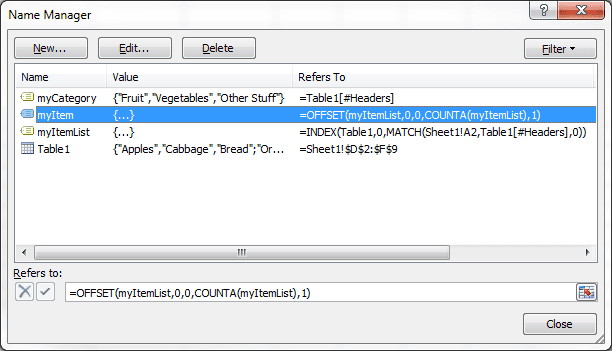
The tables create their names automatically. The other defined names, myCategory and myItem were just typed in because there was no cell or range reference.
The only time I select all the cells is when I create a defined name for a range.
2. If you select cell B2 and then choose Insert > Name > Define and select myItemList, you will see a reference to A2. If you select cell D2 and do the same thing, you will see the cell reference is C2, which happens to be the cell to the immediate left. So myItemList will show the cell to the immediate left of the active cell.
3. The Table filters aren't a technical problem, everything will work fine with the filters on. However in this instance I don't care for them because they get in the way of reading the column headings and they aren't used. So I turn the filters off by choosing Data > Filter.
Hope this helps.
J.H. LEONG8 sierpnia 2012 06:04
I am having one problem though, where I’m trying to make the dependent list in first column, the data validation says that “The Source currently evaluates to an error” and the drop down does not appear on any column. Gregory started with third column, but I happen when the first column.
J.H. LEONG8 sierpnia 2012 06:43
Gregory,
I found my problem, thanks, very helpful.
Chip11 sierpnia 2012 05:09
Best tutorial on the subject! Thanks!
However, I really struggled to make this "dynamic" to an entire column. Meaning: $A$1 limits the drop-down options for $B:$B. Your examples always include a single-cell reference for the MATCH value ("MATCH(Sheet1:A2") but I really wanted to have $A$1 limit the drop-down for $B$1 and $A$2 limit the drop-down for $B$2 and so on.
I first tried to replace your single-cell reference with a named range reference ("CategoryCol"), but no such luck.
Then I realized I needed to have the formula first reference the specific cell I wanted to match. I was able to adjust my formula to create dynamic drop-downs in the spreadsheet columns that are relationally connected to the "parent" column on a row-by-row basis.
Example:
=INDEX(Table1,0,MATCH(INDIRECT(ADDRESS(CELL("row"),COLUMN(CategoryCol))),Table1[#Headers],0))
However, with your mad skills, I'm wondering if there is a simpler, more stable solution than the one I found?
Gregoryexcelsemipro.com15 sierpnia 2012 00:25 The single cell reference is designed to be relative. Meaning that I select cell B2 and create the myItemList defined name and refer to cell A2. If $A$2 is the reference then the formula will only reference the first cell. By using a relative reference, A2, the myItemList always refers to the cell just to the left of the active cell. Therefore it can be copied down column B and it will work perfectly.
The key is to create the relative cell reference in the first row while the active cell is B2, and the reference is cell A2. Once this is done your set.
Chip22 sierpnia 2012 02:55
Thanks, Gregory. That does make sense. I did re-try your sugtion to create a simpler formula. I couldn't apply this validation rule to the entire column successfully, which is a key for me since I can't predict the number of rows that will ultimately be used. However, I also cannot turn the dynamic drop down sheet into a table, which I think you said would maintain the validation. My formula, while clunky, does handle these restrictions. Thanks again. You let me impress my boss with my semi-pro skills!
Gregoryexcelsemipro.com22 sierpnia 2012 03:50 If you put your reference table on a different sheet and give it a defined name, you can have the range name automatically update with some easy VBA code. I wrote a
simple post to cover this technique.
Raymond25 sierpnia 2012 16:44
Nice tutorial.
I used to take advantage of pivottables to dynamically get the content of my named range since PT can give sorted lists without duplicates and without blanks (offset and countA the PT list as final).
The workaround was to trigger my RowField everytime an item was choosen in, say listbox_1 to get the dynamic contents list ot that item in, say listbox_2.
Always good to learn new methodes that can do the same job :-)
Jamie30 sierpnia 2012 12:06
I'm having a little weird behavior with this. I have adapted this to a workbook I have, with the table headers Expenses and the items underneath are SubCategories for the Expenses. I have used ExpenseList as the defined name with the INDEX formula, and ExnenseListSub as the defined name with the OFFSET formula. My primary validation is in column D, starting on cell D68. I've noticed that when I choose something in cell D68 from the validation list, the ExpenseList formula changes to something funny, like =INDEX(Table1,0,MATCH(AUG!$D104954,Table1[#Headers],0)). AUG!$D104954 is not in the range I want to use for the table, which should only go from row 68 (67 with headers) to around row 225, will probably never need more than that.
Any clue why this is changing?
Thinking about it, I looked at the example provided in this post, and saw the same thing happening. In the defined name myItemList, A2 is changing to some whacky cell, such as XFD2, so the formula reads =INDEX(Table1,0,MATCH(Sheet1!XFD2,Table1[#Headers],0)).
Jamie30 sierpnia 2012 12:22
I just noticed, the INDEX formula AUG!$D#### is changing to whichever cell I have currently selected in column D, as long as only the column is a fixed value. I made it relative, and it changes to wherever I have the currently selected cell, and sometimes changes to the last possible row (100454095 or something like that) or the last column possible.
Gregoryexcelsemipro.com31 sierpnia 2012 01:22 Hopefully my previous response to your earlier comment will explain everything.
Gregoryexcelsemipro.com31 sierpnia 2012 01:20 The main problem is when you create the myItemList defined name formula, which is =INDEX(Table1,0,MATCH(Sheet1!A2,Table1[#Headers],0)) in my example, the Active cell must be where the first formula will appear. In my example, when I created this formula the active cell was B2.
After this is done, your formula will work correctly. The reference in this defined name formula is cell A2, but that is misleading because the reference is relative, meaning that it will always refer to the cell just to the left of the active cell. If the active cell is D30, and you take a peek at the defined name formula, you will see a reference to cell D29.
Similarly when the active cell is in the first column, say cell A68, then the reference will be to cell XFD68, which is the last cell in the same row. The reference wraps back around, so to speak.
Now if you create this defined name formula, for instance when the active cell is cell C20, and you use the same A2 cell reference, then the defined name will always refer to the cell that is two columns to the left and eighteen rows above it. If you then use that defined name formula in cell B2, then you'll get a reference that is near the bottom, right area of the entire worksheet, because the reference will "wrap back around."
So you should use an active cell in row 68, where ever you are going to use the formula, then open the myItemList defined name formula and change the cell reference to the proper column where your data is and then the cell reference will work all the way down to the end of the last row. And example would be that the data is in cell D68 and you want the formula in cell E68. Then select cell E68, open the defined name formula myItemList and change the cell reference to cell D68. Then you're good to go.
Hopefully that helps.
tamer5 września 2012 14:47
Hi Gregory,
i am using excel 2010 and trying to figure out if the following scenario is possible; any feedback is appreciated..
if i have 5 line items for example that their data is dependent on me choosing a reference (number or letter) from a drop down menu; when choosing the reference (number or letter), is there any way that the cells take the value of the reference from a range that i pre set?
ill try to explain below:
A1 = blank
A5 = blank
A9 = blank
A22 = blank
A71 = blank
my control drop down menu is the following: AA, A, B & C. The data range for those is AA=50, A=100, B=250 and C=500
if i click on B from the drop down menu, (think of it as a legend) i would like for A1, A5, A9, A22 and A71 to all have the value 250.
thanks!
Gregoryexcelsemipro.com7 września 2012 04:51 Yes there is a solution. Here's how I did it. In cell C2 add a Data Validation List by typing in AA, A, B, C. Create a defined name of that cell called myDropDown.
Next enter a lookup table with the same list and their corresponding values. Cell E2 = AA, cell F2 = 50, cell E3 = A, cell F3 = 100, cell E4 = B, cell F4 = 250, cell E5 = C, and cell F5 = 500. Create a defined name for the range E2:F5 with the name myLookup.
Next enter the following formula in cell A1
=IF(myDropDown="","",VLOOKUP(myDropDown,myLookup,2,FALSE))
and then copy this formula to cells A5, A9, A22, and A71.
Now when you select a value from cell C2 from the drop-down data validation list, the formula looks at the list value (AA, A, B, or C), looks up the corresponding value, and returns the result to all those cells.
tamer9 września 2012 07:25
Hi Gregory,
Just wanted to say thank you; worked perfectly!!
Thanks for taking the time and even sending me an excel sheet - much appreciated.
FLAYYMz11 września 2012 13:43
Hi Gregory,
Thank you for your article - I've successfully applied it. However, I need to create a third column, which is dependent on the second column (itself dependent on the first column).
The trick is, for column 3 I want to reference a new table, of whose name matches the value in column 2.
I.e. I want to replace "Table1" in the below formula with the value of the adjacent cell in the previous column, in an effort to reference the appropriate table.
=INDEX(Table1,0,MATCH(Sheet1!A2,Table1[#Headers],0))
Does this make sense?
Thank you in advance!
Gregoryexcelsemipro.com17 września 2012 00:19 If you want a third column then create a Table2 by using all the data values in Table1 as the Header row. Then fill in the data in Table2.
Next, while the active cell is C2 create a defined name formula, call it myItem2 and the formula is =INDEX(Table2,0,MATCH(Sheet1!B2,Table2[#Headers],0)).
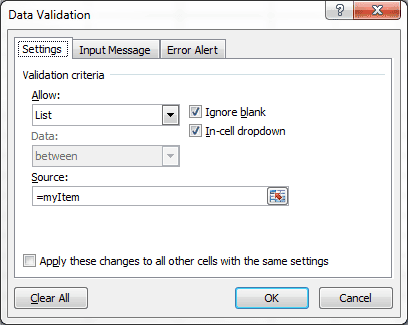
Now create a Data Validation list in cell C2 that is =myItem2.
Hope that helps.
FLAYYMz17 września 2012 10:14
Hi Gregory,
Rather than place all data values of table1 into the headers of table2, I want to break it down with a separate table for each header in table1.
Thanks
Elliotwww.paychecklawyers.com17 września 2012 18:58 Hello,
I'm trying to avoid using the =OFFSET formula because of its volatility.
I have a worksheet that uses the original Contextures solution, but when I change data in a Date cell elsewhere on the same spreadsheet, Excel crashes. I know it's the Index-dependent lists that are causing Excel to crash because when I disable the "Counter" named range, my spreadsheet no longer crashes when I change the date cell.
Has anyone else encountered a crashing problem with the Contextures method? Does anyone have a solution to the problem?
Thanks,
Elliot
Hunter27 września 2012 15:19
Hi,
Have been tasked to create a database of suppliers globally, by my company. Each company contains 4x fields and the premise of the document is whether the company provides a service in that city. The geographical hierarchy is as follows Region, Country, City.
What I want is to be able to have separate drop down filters for EMEA, Americas, AsiaPac and a static list of suppliers but be able to select different countries/cities and see who from the entire list provides services there.
Really appreciate some advice how to set that up, 1x line example of basic information is listed below.
Algeria Angola
Alger Aberdeen
AECOM www.aecom.com Key contact Email Address Y Y
Thanks,
Hunter
Gregoryexcelsemipro.com1 października 2012 17:53 These complicated examples are a little hard to visualize when not viewed in a spreadsheet and the description very precise and detailed. Perhaps you could send me an email from my Contact page. I'll respond and you can send me an example worksheet. I'm not getting the full picture here so it's hard to point you anywhere, much less in the right direction.
Hunter27 września 2012 15:23
Oops, example didn't come out very clearly, example below for
EMEA Americas
Algeria America
Alger New York
AECOM www.aecom.com Key contact Email Address Y Y
jose luis28 września 2012 12:30
hi...
i have a table of contracts, with the columns contract number, name, state.... in the same file, a different sheet was created in order to apply payments to the contract, i used a drop down list in the cell where i can select the contract number, based on the contracts table previously created; i have to insert rows for every payment made... sometimes there are different contracts for the same providor, so i want to be able to display only the contracts that the selected providor have, as per the contracts table...is there a way to do this using just one table (contracts)?
Gregoryexcelsemipro.com1 października 2012 18:02 Your example is a bit confusing. You want to reference a provider, which may have more than one contract, but you don't list provider in the table of contracts. And when you say you are "inserting rows for every payment" are you really inserting rows or adding different records for the same provider? I don't really understand the question here. If I would take a guess, on displaying only the contracts for each provider, that would take an Array formula and a (variable) number of cells to return that information. Not really my speciality.
Jose Luis2 października 2012 05:16
let me try to explain it...
sheet 1:
(a1)contract number (b1)provider (c1)contract amount
(a2)101 (b2)company 1 (c2)$10,000
(a3)102 (b3)company 2 (c3)$5,000
(a4)103 (b4)company 3 (c4)$4,000
(a5)104 (b5)company 1 (c5)$3,000
sheet 2:
(a1)provider (b1)contract number (c1)payment
(a2)*validation data list from the contract names of the sheet 1 (no problem doing this list)* (b2)*here is what i need help for, I need to create another list which displays only the different contract numbers that the providor chosen in the cell a2, has in the whole base of the sheet 1, so do not need to write the whole contract number that can cause a misswriting data and, therefore, can´t get the report of how much have been paid to that particular providor (I am talking about 600+ contracts with around 350+ different providors); in other words, if I choose in cell (a2) the option "company 1", in the list of the cell (b2)should only show the contract numbers "101" and "104" only... so I can register in the cell (c2) the payment made to that providor for that specific contract (it could be lots of payments for each contract)...therefore, the list of payments of this sheet 2 will be long based on the different payments made to the whole list of contracts...
is there a formula or a way to do this avoiding any script, will be great...
thanks for any advice
Gregoryexcelsemipro.com10 listopada 2012 20:21 This one is beyond me, formula wise. I would resort to some type of programming to see if that would work, but I'm having trouble seeing the solution.
Jill2 października 2012 17:45
I've read through the comments, but something still isn't working for me...I actually copied and pasted your formulas as stated herein, so I know there are no formula issues. I get my first dropdown in just fine, but the second one won't work at all. I'm using the defined name "Customer2" for the second dropdown when I do the data validation. I have the following reference for "Customer2":
=INDEX(Table1,0,MATCH(Sheet1!A3,Table1[#Headers],0))
Where Sheet 1, cell A3 is the location of the first drop-down entry upon which the second is dependent (I have my Table1 in Sheet 2). I have no idea why my second drop-down isn't working...any thoughts would be much appreciated!
Gregoryexcelsemipro.com2 października 2012 17:59 When you create the define name formula for Customer2, the active cell must be where the formula will return the first answer. For example, cell B3 might be where you would want the second drop-down list so that is the active cell where you would create the Customer2 defined name formula.
The formula is actually a relative reference, meaning that, in this example, it will always look one cell to the left for the input.
Jill2 października 2012 18:24
I thought I'd already tried that, but I just did it again, and voila! One of those things where I think I looked at it/tried too long...I'm an idiot - thanks for the quick response!
Joo10 października 2012 04:45
Thanks a lot. It's very helpful even I've just used from your sharing a bit.
Jennifer19 listopada 2012 00:07
Hi
This has been a really helpful tutorial for me, i have applied it to some inventory data that i want to use to populate a schedule of quantities from. I have three levels of selection criteria (Category, Type, Size) on approx 1600 different items. My data is ordered by category then type then size.
Category Type Size
widget WA 100
widget WB 150
sprocket SA 50
sprocket SA 60
sprocket SB 50
Sprocket SC 60
To make this work i created two look-up tables on separate worksheets to generate the dynamic drop-down lists:
One sheet with part categories as header with the unique part types listed beneath:
Widget Sprocket
WA SA
WB SB
SC
A second one with part types as headers with unique sizes listed beneath
WA WB SA SB SC
100 150 50 60 50
60
I used Index formulas to populate the look-up tables from. However with 20 categories and over 200 part types the sheet crashes every time i recalculate - frustrating!
Is there a way to create a dynamic drop down list directly from a database listed as above?
Thanks
Jennifer
Gregoryexcelsemipro.com21 listopada 2012 00:34 So far as I know, Data Validation won't accept the complicated INDEX formula directly, hence the use of the Defined Name formula.
Have you tried leaving your worksheet on auto calculate? Or does that slow it down too much?
Sorry I'm not much help.
Jennifer28 listopada 2012 20:47
Thanks,
I seem to have got it working, by using index and offset formulas in the defined names to reference a unique name lookup sheet, then return data from the original database.
Jennifer
Gregoryexcelsemipro.com29 listopada 2012 03:22 Fantastic! I'm glad you were able to figure it out.
Noel21 listopada 2012 13:59
Is there a simple way to save the selections made on sheet 2?
My use case is that I have a table and I want to know how many times Johnny selects the combination of other stuff popcorn vs fruit grapes?
DJGizbo23 listopada 2012 15:52
Dear Gregory,
I like this work alot! Now I want to make it even more dynamic and a new table. So first you choose in a dropdown the main course of the starter. Then from that choice the formula's get the info from Table1 of Table2.
With indirect I made the choice for selecting the table, but I got a #ref. It looks like =INDIRECT('Table'&A1) does not work (indirect and dynamic names bug??). Can you please advise?
Gregoryexcelsemipro.com23 listopada 2012 20:01 If you follow the post closely it should work correctly. You may be missing something simple, so my recommendation is to download the example file at the end of the article and see how I've done things, and then compare that to what you are doing.
Tim24 listopada 2012 22:40
Thanks for great info. I expect what I am asking is not possible without VBA, but going to ask just in case. How about creating the dynamic lookup from a single table with the first key being a value. For example, a single table of expense codes like travel, training, registration fees, Bank Fees, Interest Income, etc and a second column for each entry indicating income or expense. I would like to be able to select income or expense from a simple drop down (easy) and then have a second drop down populate with only the appropriate choices (harder). The key is the feed data is provided in a single table, and is updated from time to time. I went through the hassle of separating into two separate tables as necessary for this method, and even some VBA to do this automatically when requested, but it would be much easier and simpler to be able to pull the lists from the original table.
Gregoryexcelsemipro.com28 listopada 2012 04:40 The data for the data validation drop-down list does come from a single table. Not sure exactly what you are referring to there.
For your example you would have a two-column table. The heading on the first column would be Income, with appropriate choices in the rows below. The second column of the table would have the heading of Expense, and have a similar list of choices for expenses below the heading. This table could be used to create data validation cell to select the Income or Expense, and then a second cell to dynamically make a selection.
Hope this helps.
Tim28 listopada 2012 06:12
Yes, I wondered if I was clear on my question. The data for the lists is provided in a slightly different form. The first column of the table contains ALL the categories. The second column contains the word inc, exp, or memo for each record, and then a third column with either active or inactive. This is not my design choice, this is the way the categories are provided to me. They are updated on a monthly basis.
I have converted this to a table like suggested, with the first column containing only active expense tags, and the second only active income, and the third any memo tags. Works fantastic, but wanted to eliminate the monthly table conversion.
I was hoping someone had an idea how to do this without converting the source table format, and without using vba.
Kurt18 grudnia 2012 19:28
I have successfully created dependent menu lists using the methodology on Contextures. It works great with one exception...it does not process well backwards. For example, in the first menu I select a Region (North America, South America, Europe, etc.). the second menu, which is dependent on the fiorst menu is country (USA, Canada, Mexico, France, Germany etc. and the third is city. Everything works perfectly except if I selected North America and then USA and then Boston and then decided to change the region to Europe the second and third menu selections stay as previously selected...which could lead to an incorrect reporting result. I would like for it to default to being blank when one menu is not possible given the selection of another menu. Any ideas? Thank you, Kurt.
Gregoryexcelsemipro.com28 grudnia 2012 20:47 You could change the defined name formula to include an IF statement that looks to see if the reference cell is blank and returns a blank cell, otherwise does the lookup. Something like this: =IF(B5="","",VLOOKUP(B5,myVendors,2,FALSE)).
Jun26 grudnia 2012 21:39
Thanks for the tutorial, Gregory!
One question. Is there a way to clear out the value on the Item (second column) when I select a different Category (first column)? In other words, if I originally selected Fruits as the Category and Bananas as the Item, and then I change the Category to Vegetables (on the same row), can Bananas be cleared out since Bananas are not Vegetables?
Gregoryexcelsemipro.com28 grudnia 2012 20:44 You might change the myItemList defined name formula to:
=IF(Sheet1!A2="","",INDEX(Table1,0,MATCH(Sheet1!A2,Table1[#Headers],0)))
and see if that works. The formula returns a blank if the reference cell is blank, and otherwise does the lookup.
Abhijeet16 stycznia 2013 07:36
Hey Gregory,
Thanks for the info..it helped me a lot..
Is there an option for adding the check box function also in the dependent list.
For selecting multiple values from the drop down.
Abhijeet
Gregoryexcelsemipro.com17 stycznia 2013 06:05 For a check box option you would have to go with VBA.
Corey28 stycznia 2013 15:25
Gregory,
Thank you for providing this tutorial. I have one problem though. I've created the dynamic list you provided in the example above, works great. However, my problem is that if I were to select "Fruit" as the category first, then selected "Banana" as the type, I can go back and then change my category from "Fruit" to "Vegetables", thus showing "Vegetables" as the Category and "Bananas" as the type. This is obviously not a valid combination. Is there a way to have the user select only valid combinations regardless of which box is selected first (i.e. if I select "Bananas" in the second box, the only choice I have for the first box is "Fruit")? Any help on this is greatly appreciated.
mike30 stycznia 2013 23:15
I ran into the same error many others have, and one that you have addressed: "The Source currently evaluates to an error" - In general your instructions skip major parts of the building this model. i.e. What cells do you highlight when you create a "Data Validation" versus a "Defined Name"? -
Thanks for all the free instruction though.
mike30 stycznia 2013 23:33
ok i figured it out and feel better - excel can be frustrating...
arijit18 lutego 2013 20:54
It doesnt work with excel 2007
=INDEX(Table1,0,MATCH(Sheet1!A2,Table1[#Headers],0))
=OFFSET(myItemList,0,0,COUNTA(myItemList),1)
Gregoryexcelsemipro.com19 lutego 2013 04:34 Go to the bottom of the blog post where it says UPDATE. Then click on the link "download this file" and you will get a working file downloaded to your computer.
arijit19 lutego 2013 06:08
Hi,
I have download it but its only working on your file same coding is not working on mine...
Manu27 lutego 2013 11:16
Hi Greg,
Great post! It has helped me a lot.
I have used it to create a dynamic drop down on a column of a table that reads the drop down list values from that same column on that same table. It is a great feature since it allows either selecting existing values or entering new ones.
However, when I enter one value on the column more than once it also appears more than once in the drop down list. I have not been able to figure out a way of eliminating duplicates in the drop-down. But I am not a excel semi-pro as you ;)
Do you have any hint to give me?
Thanks a lot and keep the great work here!
Cheers,
Manu
Gregoryexcelsemipro.com3 marca 2013 20:25 I'm sure there must be a way to do this, but since I'm a semi-pro and not a Pro, I couldn't tell you what the answer should be. Sorry I couldn't help. :-)
Jeff Weir7 kwietnia 2013 01:12
Manu - can't you just use Excel's autocomplete feature to accomplish the same thing and ditch the data validation altogether?
Matan3 marca 2013 07:21
Hi Gregory.
Thank you for the lovely post and answers.
I have a problem with the dependent lists, and I see it's also in the sample excel file you've distributed, and would really appreciate your assistance on this matter.
The thing is that the secondary list doesn't update when I change items in the main list. For example, in your excel file, if I change A2 from fruits to vegetables, B2 still displays "Banannas". Only when I actually click on the drop-down menu in B2 do I see the vegetables. Is there any way to update the displayed value in B2 once I switch items in A2?
Thanks.
Matan.
Gregoryexcelsemipro.com3 marca 2013 20:21 Assume for a moment that you have a Defined Name Formula that is used in Data Validation for cell B2, and the name is MyFormula and it equals SuperDuperFormula. If you want MyFormula to recognize when there is a blank cell in A2, then you should modify the formula as follows.
First select cell B2, then go to the defined name formula MyFormula and change it to:
=IF(A2="","",SuperDuperFormula)
This modification to the formula will look to the first cell that is to the left of the active one, and if there is a blank it will return a blank, otherwise it will execute the SuperDuperFormula.
For the most part, this approach works. However I believe that there is some event-driven behavior with the Data Validation that sometime interferes.
Hope this helps.
Jeff Weir7 kwietnia 2013 04:22
Gregory: I think Matan is talking about the scenario where a user has made a choice from the dropdown in B2, and then later goes and changes the dropdown in A2. In that case, the choice in B2 now no longer reflects the choice in A2.
Matan: You would need a VBA event handler to monitor if a 'master' dropdown is changed, and then that code could clear the value in the 'slave' dropdown.
Here's an example:
https://sdrv.ms/Zphkl8
Gregoryexcelsemipro.com7 kwietnia 2013 20:09 The link goes to the Microsoft Excel Web App, which does not support Data Validation or VBA Projecte
Jeff: If your assumption regarding Matan's question is true, I typically add an IF statement to the defined name formula to look for a blank cell and return a blank, otherwise do the lookup.
Jeff Weirwww.heavydutydecisions.co.nz…7 kwietnia 2013 21:34 Forgot to mention that you have to download the file by clicking File then Save As.
I'm not clear how the IF statement helps once a selection has been made in B2 and then the selection is changed in A2. I think Matan is talking about this scenario:
1. The user selects "Vegetables" in A2
2. The user then selects "Cabbage" in B2
3. The user then selects "Fruit" in A2.
Granted, your IF statement is handly for making sure that you can't pick a seleciton from B2 UNTIL you've made a seleciton from A2. But it doesn't help with the above scenario, where you in fact DID make a selection from A2, then made a valid selection from B2, but then subseqently changed your selection in A2 making the data in B2 out of context.
Gregoryexcelsemipro.com7 kwietnia 2013 21:48 Your right about that and would need VBA to update the Data Validation upon a change.
The worksheet I downloaded from your link on the Excel Web App had all VBA and Data Validation removed.
Jeff Weirwww.heavydutydecisions.co.nz…7 kwietnia 2013 21:54 Apologies for that. In short, skydrive sucks. Here's the file on Google Docs:
https://docs.google.com/file/d/0B1hgC5lSuLjVYnV5am5fWkRvQmM/edit?usp=sharing
Gregoryexcelsemipro.com7 kwietnia 2013 21:56 Jeff, very nice solution. My hats off to you.
Jeff Weirwww.heavydutydecisions.co.nz…7 kwietnia 2013 21:48 Have uploaded file to Google Docs, because it seems you simply can't download it properly off skydrive.
https://docs.google.com/file/d/0B1hgC5lSuLjVYnV5am5fWkRvQmM/edit?usp=sharing
Akhil7 maja 2013 17:36
Hey, were we able to solve this Jeff? I am looking at the Macro in the file you attached. but given my lack of proficiency with VBA/Macros I am not able to replicate this in my excel.
Any help would be appreciated!
Thanks!
Adam21 marca 2013 18:12
Is it possible to do this if the data contain numbers? i.e.
Building/Room
5555 ->
- 1
- 2
- 3
4456 ->
- 100
- 15
... without having to precede each number with an underscore? The dynamic drop downs are working fine for me, but all of my buildings start with "_". It works fine like that, but I'm just being picky.
Gregoryexcelsemipro.com24 marca 2013 14:21 I haven't tried it with numbers, but I can't imagine it work work any differently that using text.
Dima22 marca 2013 08:36
Hello!
Thank you very much for this post, I find it very useful, but I have an additional question: Is it possible to keep hyper-links related to a local network folder or another folder situated in My computer, when using this formula?
For example, to be able to open the hyper-link if I select from drop-down list the fruits category (which it's a hyper-link)
Gregoryexcelsemipro.com24 marca 2013 14:17 I'm not sure how you would be able to do what you are asking. Sorry I couldn't help.
Kameron3 czerwca 2013 21:54
your best choice is to use condition formatting in order to change the underscores to a "invisible" color, whatever matches the background, which is relatively easy to do
John Mclachlan22 marca 2013 13:35
How can you adapt this to password enable ranges in the drop down list.
For example: I have a range 1 to 30 to indicate % discounts but any sales reps can grant up to 15% (no password required). Manager1 password can allow additional discount to 20% and Manage2 password allows the full range to 30%.
Gregoryexcelsemipro.com24 marca 2013 14:16 I'm not sure how you would enable password related ranges. Sorry!
Clarion131 marca 2013 01:28
The conditional list works well however when I copy the sheet into a new tab, the conditional list stops working. The defined names have twice as many items for example my list that applies to the workbook and my list that applies to the new tab. the dropdown however is no longer conditiona. I'm sure there is an easy fix here but I don't know enough to do it. Can you please help?
Gregoryexcelsemipro.com31 marca 2013 15:21 When you copy a sheet with defined names you get duplication. No easy way around that. If you need more than one worksheet in a workbook, the defined names on each sheet must be different.
Excel will usually give you the option to rename the defined names, which is good, but means that you will have to re-do the Data Validation by using the revised name. Sorry I couldn't be of more help.
Emily5 kwietnia 2013 22:15
This is very helpful. Thanks for posting!
Jeff Weir7 kwietnia 2013 01:08
Great post. Note that you can do away with MyItemList (and hence the the volatile OFFSET function it contains) altoghether by using the below formula in place of your MyItem formula:
=INDEX(Table1,1,MATCH(Table2[@Category],Table1[#Headers],0)):INDEX(Table1,COUNTA(INDEX(Table1,,MATCH(Table2[@Category],Table1[#Headers],0))),MATCH(Table2[@Category],Table1[#Headers],0))
(and as an added bonus, there's no need to select a particular cell when entering this formula)
You can then delete the MyItemList name...it's no longer needed.
Gregoryexcelsemipro.com7 kwietnia 2013 20:03 Thanks for the formula. It appears to be sufficiently long enough to give me a headache just by looking at it. :)
Jeff Weirwww.heavydutydecisions.co.nz…7 kwietnia 2013 22:48 Here’s a quick explanation.
As you’re aware, you can use the INDEX function to return a cell value from a list or table. For instance, if we want the first row and column of SomeRange, we’d use this:
=INDEX(SomeRange,1,1)
…and if we want the entire row of the first column in SomeRange, we’d use one of these:
=INDEX(SomeRange,0,1)
=INDEX(SomeRange,,1)
And if we wanted something in-between – say the 3rd row or the 7th row, we’d use theses:
=INDEX(SomeRange,3,1)
=INDEX(SomeRange,7,1)
But INDEX does something cool if you use two INDEX functions with a colon in between them…it returns the entire RANGE that lies between the cell that the first INDEX function points at, and the cell that the second INDEX function points at…inclusive of the first and last references.
So for instance this would return an array of all the rows from row 3 to row 7 in the 20th column of SomeRange :
=INDEX(SomeRange,3,20) : INDEX(SomeRange,7,20)
If SomeRange started in A1, then this is the same as saying:
=T3:T20
Given this, we can return a dynamic range that dynamically references a discrete portion of a table using nothing but INDEX.
So for instance, say we have an ‘Input’ table with a ‘Master’ dropdown in a column called ‘Master’ and a ‘Slave’ dropdown in a column called ‘Slave’. And we have a table called ‘Database’ that lists the Master categories across the top in the headers, and the various slave categories beneath each Master heading.
We can build a dynamic range that references the Slave picklist depending on what the Master picklist is set to.
To reference the FIRST cell, we use this:
Formula 1: =INDEX(Database,1,MATCH(Input[@Master],Database[#Headers],0))
To reference the LAST cell, we’ll start by first building a reference to the entire column:
Formula 2: =INDEX(Database,0,MATCH(Input[@Master],Database[#Headers],0))
And now we’ll need to replace that zero with a count of the number of rows that contain text in the particular column we are referencing. To do that, we just wrap Formula 2 in a COUNTA function:
Formula 3: =COUNTA(INDEX(Database,0,MATCH(Input[@Master],Database[#Headers],0)))
…and then substitute Formula 3 into Formula 2 where the Zero is:
Formula 4:
=INDEX(Database, COUNTA(INDEX(Database,0,MATCH(Input[@Master],Database[#Headers],0))),MATCH(Input[@Master],Database[#Headers],0))
So Formula 1 references the first cell of interest, and Formula 4 references the LAST cell of interest. All we need to do now is put a colon between them, and call it a day:
Final Formula: =INDEX(Database,1,MATCH(Input[@Master],Database[#Headers],0)): INDEX(Database, COUNTA(INDEX(Database,0,MATCH(Input[@Master],Database[#Headers],0))),MATCH(Input[@Master],Database[#Headers],0))
Eric24 kwietnia 2013 12:31
Hi Gregory,
Thanks for doing this. I've started using this process this week, but I've come across one issue: in the final drop-down, the contents of the header row is also showing. I'm using Excel 2011 on Mac (which I hate), so there may be something weird happening there.
Cheers,
Eric
Eric24 kwietnia 2013 13:05
Hi again Greg - solved my Header problem. I had named a range for the Table, and then referenced the range instead of the actual Table; hence the automatic header-ing wasn't included.
Thanks again!
Linda29 maja 2013 18:36
Hi Gregory, thanks for this very useful post! Is it possible to create a dropdown list that also allows for a list item to have start and end dates? Here's what I'm trying to get in a column called First Review:
Scheduled
In progress
Completed
Delayed
Gregoryexcelsemipro.com28 czerwca 2013 02:48 I'm sorry, but I don't get what you are trying to express to me. It's not getting through my thick skull. Not sure what dates you are talking about.
Matt27 czerwca 2013 15:29
This seems to work great for a two-tier dependent dropdown list, but what about a three tier system? For example, if each item had a list of options to choose from, such as seedless, fresh, rotten, etc. Could that be possible using this method?
Gregoryexcelsemipro.com28 czerwca 2013 02:46 I haven't done a three tier system as of yet. It gets a little more complicated and I haven't had time to figure it out and write a post.

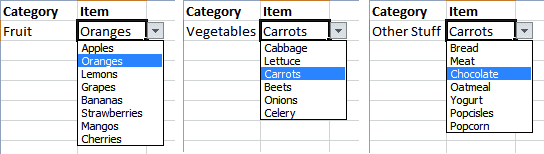
 The other day I was reading a post over at the Contextures blog about Dynamic Dependent Excel Drop Downs and realized that using an Excel Table would provide an alternative method that is both simple and flexible. Tables are available in Excel versions 2007, 2010, and 2011.